 Twinpage
Translate a PDF and keep the layout
Twinpage translates a whole PDF on your phone and draws the translation over the original page, so tables, columns and pictures stay where they were. Longer translated text can make type smaller in tight spots. Free covers 1 document a day up to 3 pages.
Free: 1 document a day up to 3 pages. iOS 26 or later, phone only.
Short answer
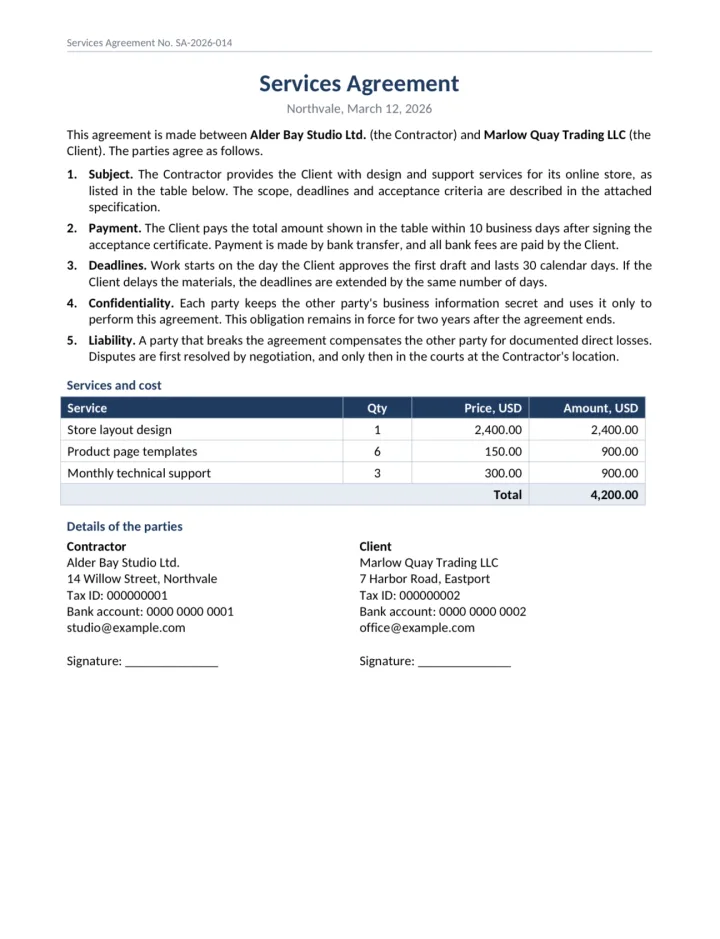
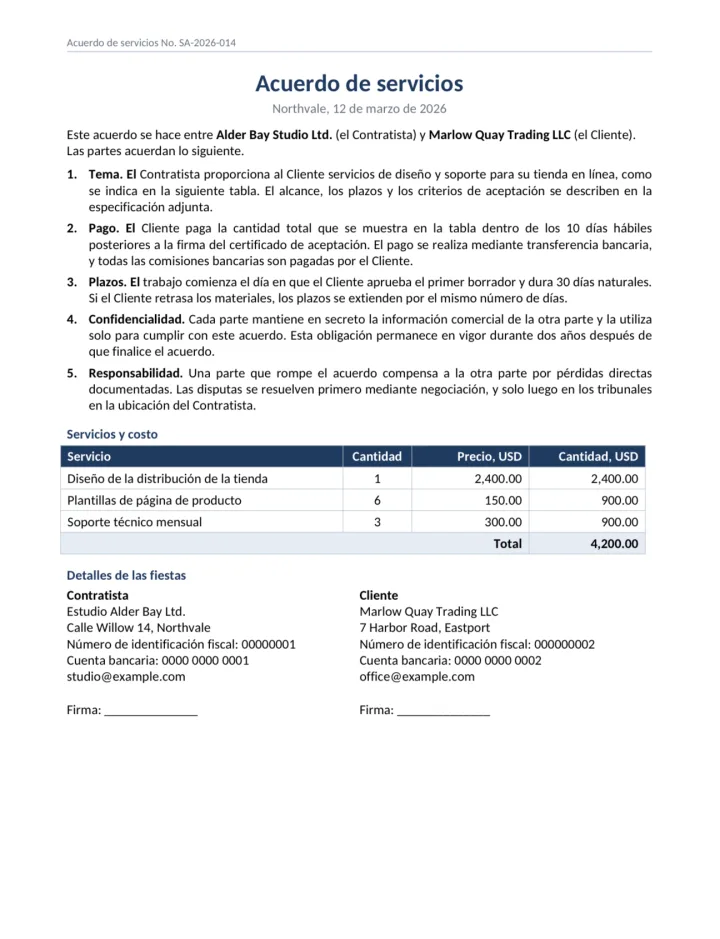
Open the PDF in Twinpage, choose the target language and wait for the result. You get a PDF that looks like the original in another language, and you can make an editable .docx copy. Translation runs on the phone with the translator built into iOS; nothing is uploaded. Our first run on a real phone, a one-page sample contract from English to Spanish, took 217 seconds including language preparation.
What happens to a PDF during translation
Text PDF in As original mode
This is the default for PDF. The app reads the text layer of the page and groups lines into paragraphs, taking table lines into account. The page is kept as a picture, the original text is covered with the background color around it, and the translation is drawn in the same frame. Type size is chosen so a one-line label stays one line and the longest word does not break. The text layer of the result holds only the translation, so search and copy work in the new language.
Editable copy as a docx file
Make editable on the result screen builds a .docx version: paragraphs, tables and cells become real text you can change. In our tests a 5 by 5 table stayed 5 by 5 and no pages were lost. On a dense tax form the grid of the form was rearranged, so for forms As original is the safer choice and the editable copy is for when you need to change the text.
Scanned pages
A scan has no text layer. The app recognizes the text on the phone and then works as in As original mode. Scans need Pro. Details are in translate a scanned document.
Built-in options and where they stop
iOS has its own Translate app and can translate text you select. These are made for words, sentences and what you point the camera at. We have not tested on iOS 26 whether any built-in option takes a whole PDF and returns a file with the same layout, so the table below says not tested where we have no check of our own.
| Way | Keeps layout | Whole file | Offline | Cost | Certified |
|---|---|---|---|---|---|
| Translator built into iOS on selected text | Not tested | Not tested | After language download | Included in iOS | No |
| Twinpage, As original | Yes, page kept as image | Yes | After language download | Free 1 a day up to 3 pages, then Pro | No |
| Twinpage, editable copy | Structure kept, form grids may move | Yes | After language download | Same as above | No |
| Human translator | Depends on the translator | Yes | Not applicable | Paid | Can be, if the translator certifies it |
source: Twinpage development journal (October 26 to 29, 2026); built-in options not tested by us
Step by step with Twinpage
Open the PDF
Tap the button to choose a document and pick the PDF in Files. If it asks for a password, unlock it in another app first.
Choose the languages
Check the source language and pick the target. If the language is not downloaded yet, iOS downloads it once over a connection.
Wait for the result
Keep the app open while it works. Time depends on page count, the phone and whether the language was ready.
Check and keep
Read the translation, compare it with the original (side by side is Pro), then save, share or print. Tap Make editable if you need a .docx copy.
Free: 1 document a day up to 3 pages. iOS 26 or later, phone only.
What stays and what can change
Tables, columns, headers, footers and pictures stay in place. What changes is the text inside each frame, because a translation is rarely the same length as the source.
| Change | What happens | How to check |
|---|---|---|
| Type size in cells | Shrinks to fit longer text; down to 72% in our tests with 25% longer text | Zoom into tables and narrow columns |
| Line wrapping | Lines break at other points, a label may take two lines | Look at headings and labels in tight boxes |
| Frames in dense forms | Text can touch the lines of a box | Compare the form with the original page by page |
source: Twinpage development journal, stage 3 (October 26, 2026)
How long it takes
| Pair | Document | Device | Time | Date |
|---|---|---|---|---|
| English to Spanish | Sample Service agreement | Phone, iOS 27.2 | 217 s including language preparation | October 29, 2026 |
| English to Spanish | Contract, .docx | Mac | 7.0 s, language already downloaded | October 27, 2026 |
| English to Russian | Résumé, .docx | Mac | 2.1 s, language already downloaded | October 27, 2026 |
| Spanish to English | Contract, .docx | Mac | 2.1 s | October 27, 2026 |
| Russian to English | Résumé, .docx | Mac | 1.3 s | October 27, 2026 |
source: the Twinpage Mac test log and the device run of October 29, 2026
The Mac runs used the same translation engine as the app and timed only the translation itself. The phone run includes getting the language ready; no download sheet appeared because the language was already on the phone. We have not yet measured a long PDF on a phone.
Can you translate a PDF for free
Yes, within a limit: 1 document a day up to 3 pages, plus the sample documents, which do not count. A PDF longer than 3 pages cannot be translated on the free tier; the app shows the Pro screen instead. Pro removes the daily and page limits for $4.99 a week, $29.99 a year with a 3-day free trial, or $59.99 once (US prices).
Checking the translation before you send it
Machine translation of short lines without context makes mistakes a reader may not expect. In our own runs, the heading Details of the parties became Detalles de las fiestas (parties as in celebrations), and the column labels Qty and Amount both became Cantidad. A page footer came out as Página 1 De 1 with a capital De.
- Read headings and table labels first: they are short and have the least context.
- Check names, dates, amounts and numbers against the original.
- Use side by side view (Pro) to compare line by line.
- For anything with legal weight, have a translator check it. See machine or certified translation.
Common problems
- Password-protected file. Unlock it first; the app cannot open it with the password in place.
- Language pair not available. Pair availability depends on the phone and its iOS version. Check the languages page.
- Very dense forms. Use As original rather than the editable copy, and check boxes and frames page by page.
- First translation is slow. The language may be downloading or getting ready. Later documents in the same language skip that step.
Questions
Can I translate a PDF to English?
Yes. English is one of the 20 target languages. The pairs we have run so far are listed on the languages page.
Does the translated PDF stay searchable?
In As original mode the text layer of the result holds the translation, so you can search and copy it in the new language.
Can I get a .docx file instead of a PDF?
Yes. Tap Make editable on the result screen to get a .docx copy of the translation.
Why is the text in a table smaller than before?
The translation was longer than the source, and the app shrank the type so it fits the same cell instead of breaking the table.
Is my PDF uploaded?
No. Translation runs on the phone and there is no account.
Related guides
- Scanned documentsHow a scan or a photo of a page becomes the same page in another language
- LanguagesAll 20 languages, their scripts and which pairs we have tested
- Machine or certifiedWhen an app translation is enough and when an office needs a translator
- HomeWhat the app does with a document and what you get back
Same document in a new language
Choose a PDF or .docx file, pick one of 20 languages and get the page back with its tables and columns. Translation runs on your phone.
Free: 1 document a day up to 3 pages. iOS 26 or later, phone only.